¶ Importing Existing Resources
Multiportal allows you to import any Virtual Machines, ISOs or Templates that you may already have in Proxmox.
¶ Import Existing Virtual Machines
Any Virtual Machine that is created, or already exists in Proxmox, can be imported into MultiPortal and assigned to an existing Tenant and Virtual Data Center.
-
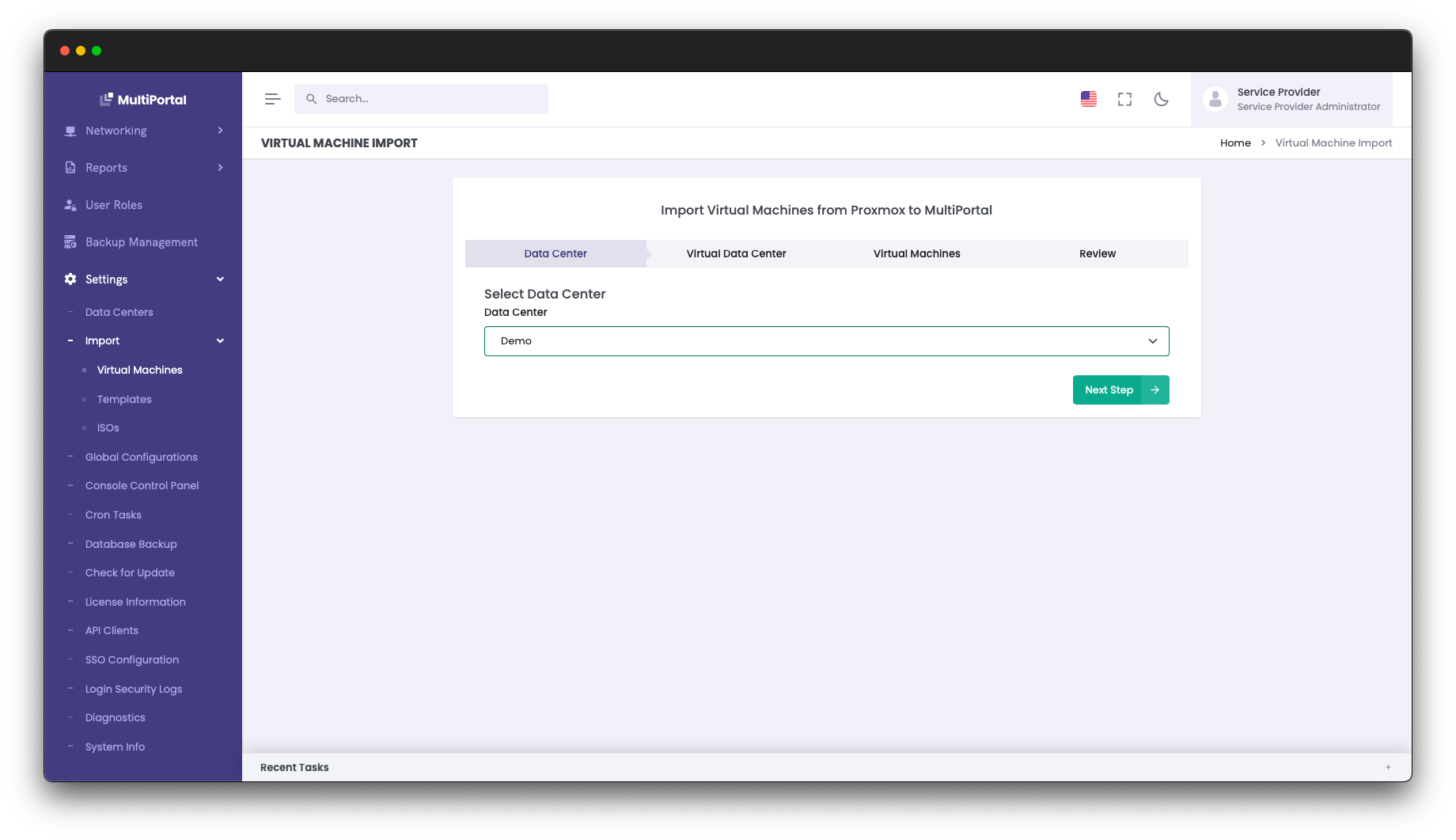
As a Service Provider Administrator, browser to Settings > Import > Virtual Machines.
-
Select an existing Datacenter from the list and click "Next Step".
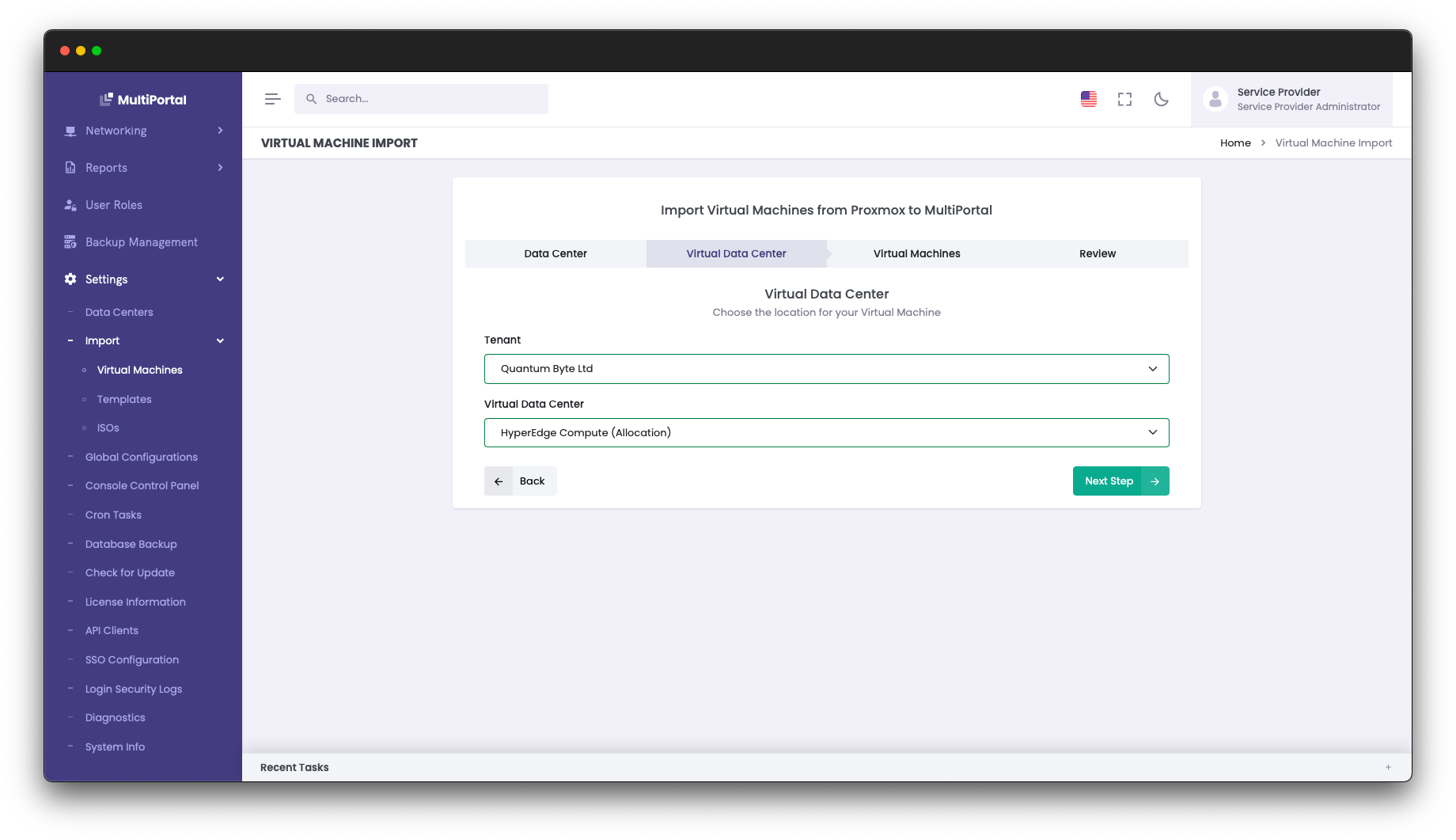
- Select an existing Tenant and Virtual Data Center and click "Next Step".
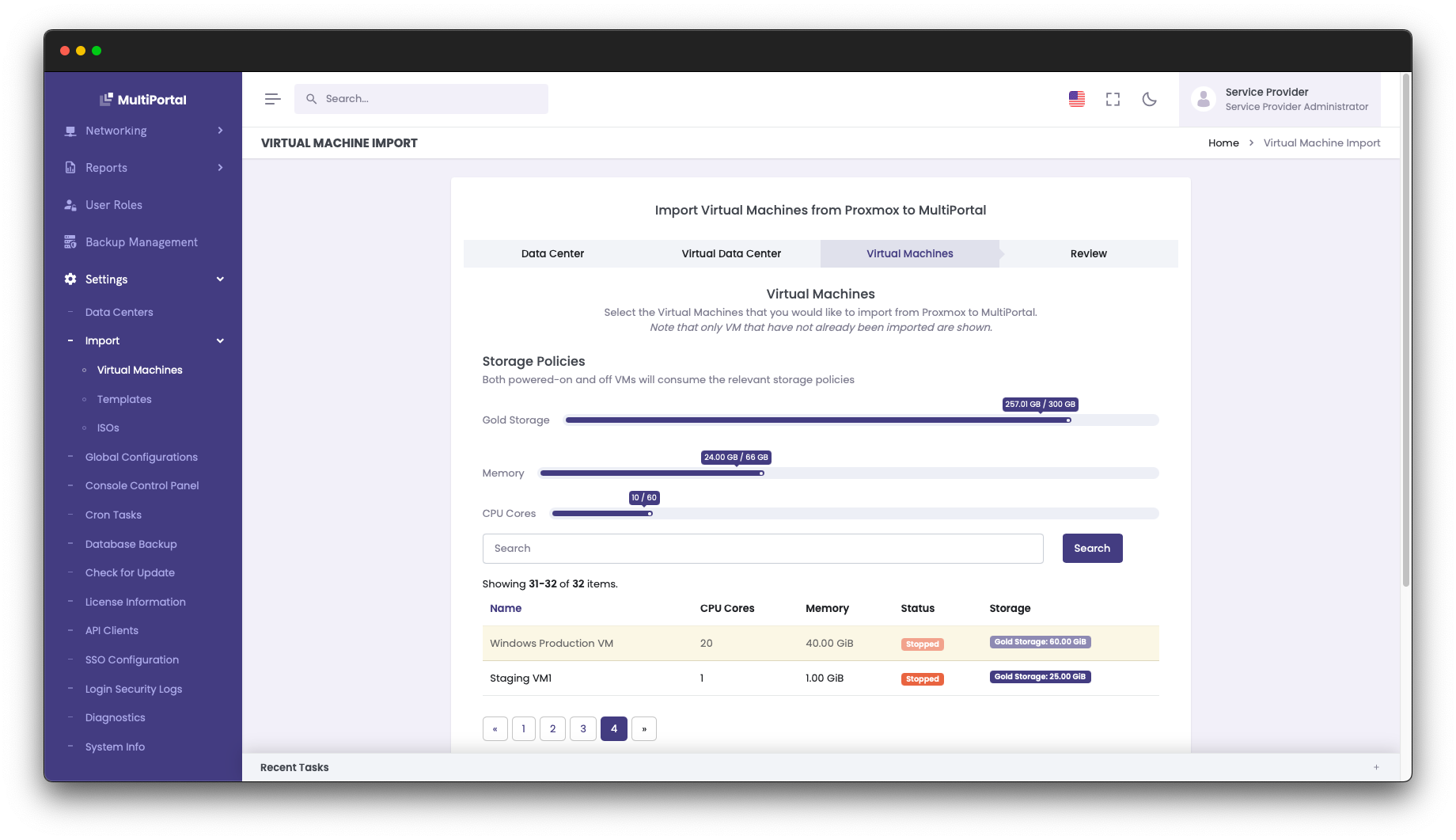
- On the next screen, MultiPortal will poll your Proxmox Datacenter and get a list of all existing Virtual Machines that do not already exist in MultiPortal.
You may notice that some rows are highlighted in yellow. In these cases the Virtual Machine cannot be imported either due to the underlying network not existing in MultiPortal, or the Virtual Data Center not having the appropriate amount of Compute or Storage resources available.
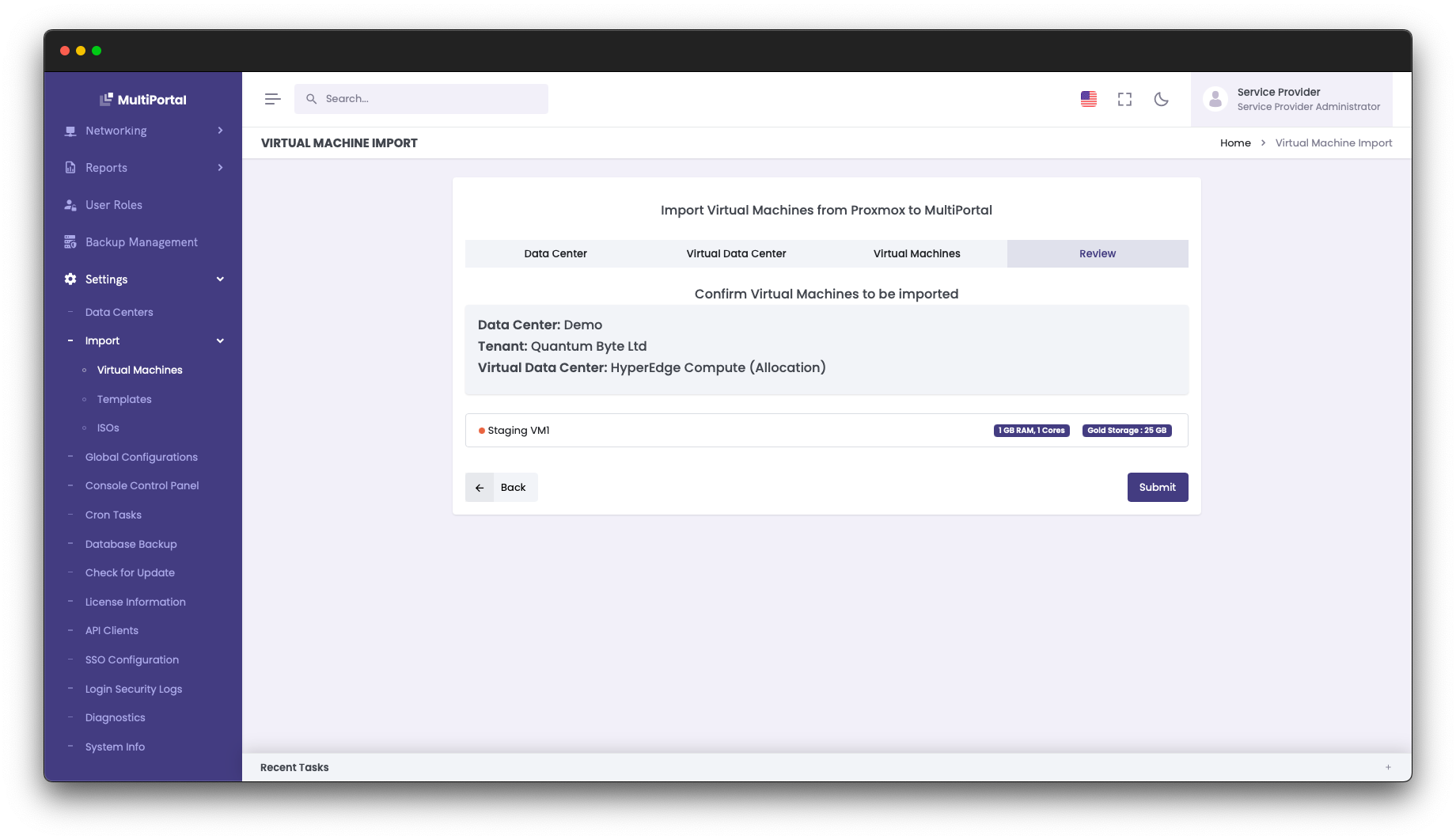
- Select the Virtual Machine you wish to import and click "Next Step". You will be displayed a summary of the import process, detailing the name of the Virtual Machine, Data Center, Tenant and Virtual Data Center. Click "Submit" to initiate the import process.
Now you will be able to see your newly imported Virtual Machine within your Virtual Data Center and manage it via MultiPortal.
¶ Import Existing Templates
MultiPortal also supports any existing Templates that already exist within Proxmox
-
As a Service Provider Administrator, browser to Settings > Import > Templates.
-
Select an existing Datacenter from the list and click "Next Step".
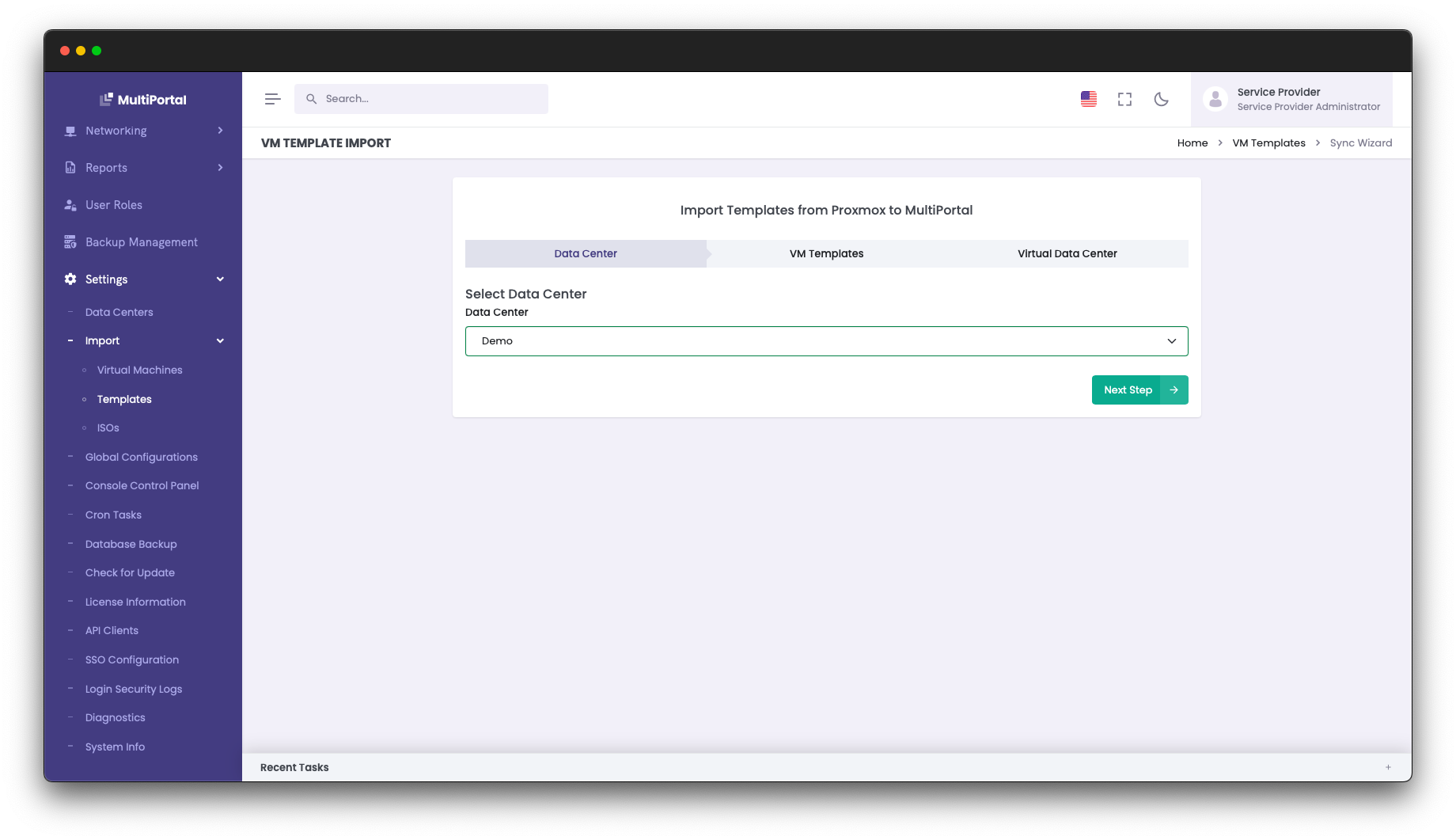
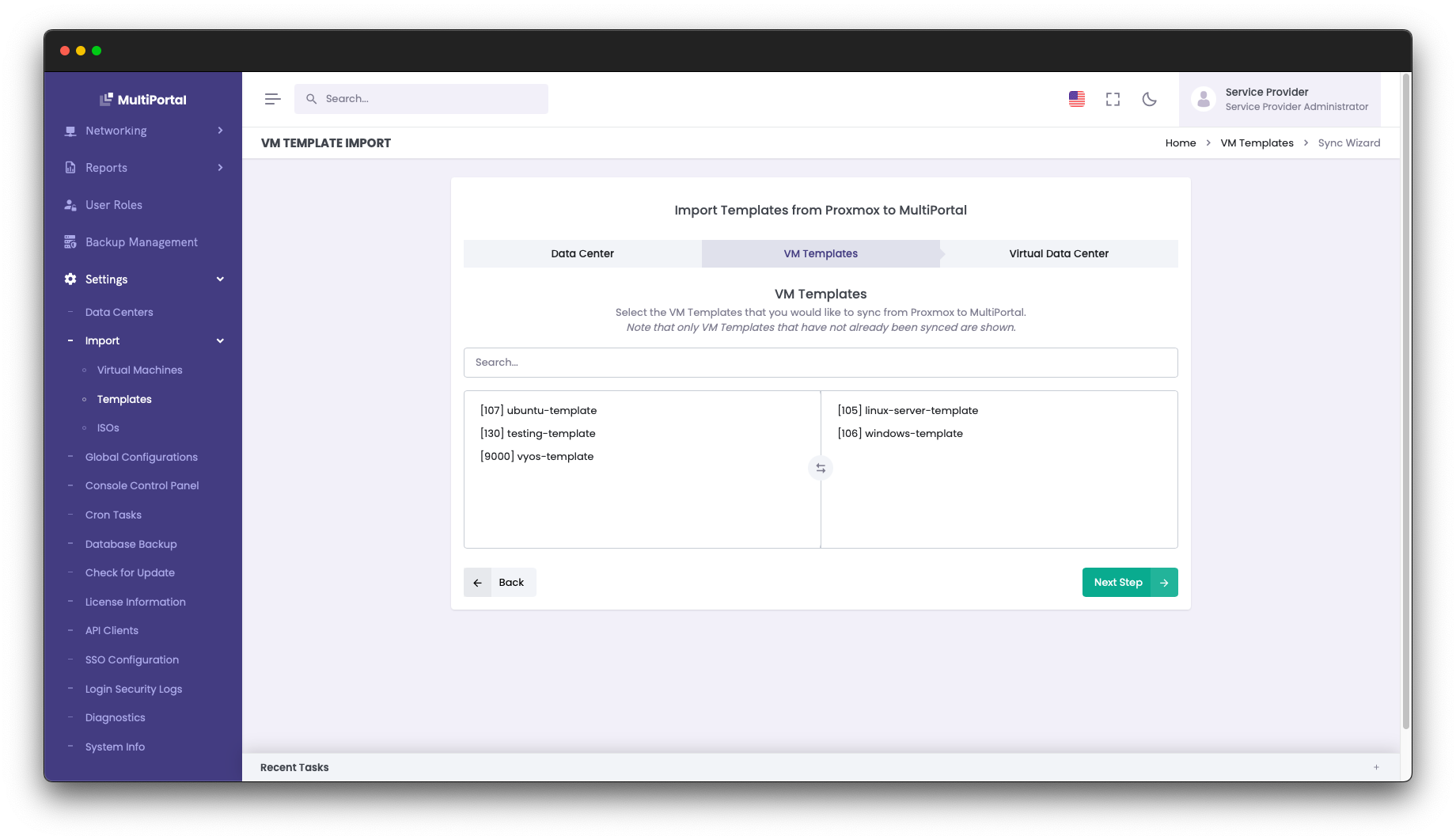
- MultiPortal will poll your existing Proxmox Datacenter and retrieve a list of all Templates. Simply click on any Templates you wish to make accessible within MultiPortal and they will be moved to the right hand side of the input box. Click "Next Step".
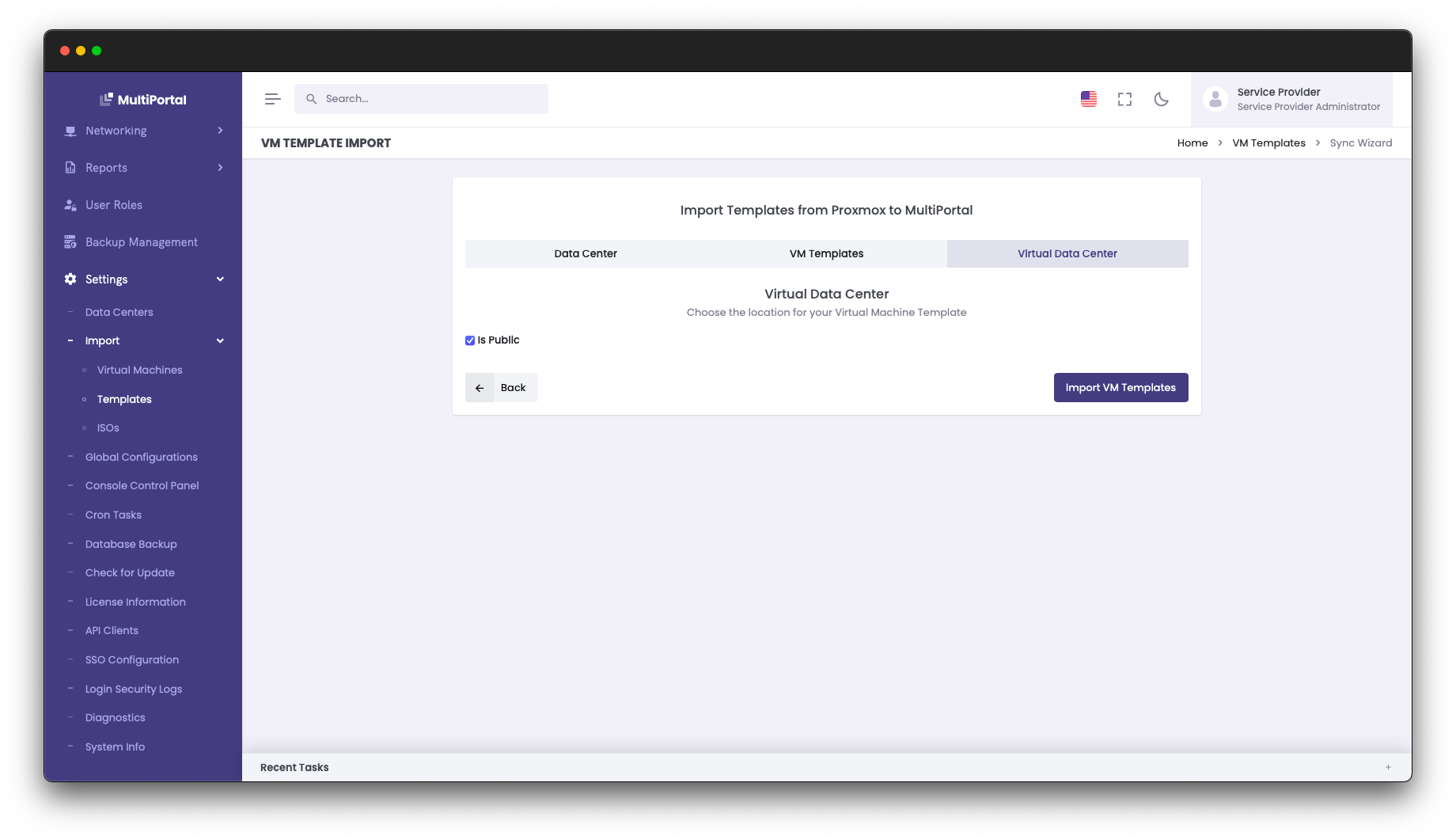
- You can now either set the selected Templates as "Public", or assign them to a specific Tenant and Virtual Data Center. If you set the Template(s) as Public, they will be accessible by all Tenants and Virtual Data Centers in your Proxmox Datacenter.
- After clicking "Import VM Templates", you will be taken to the Catalogue page where you can see a full list of Virtual Machine Templates available in your MultiPortal instance.
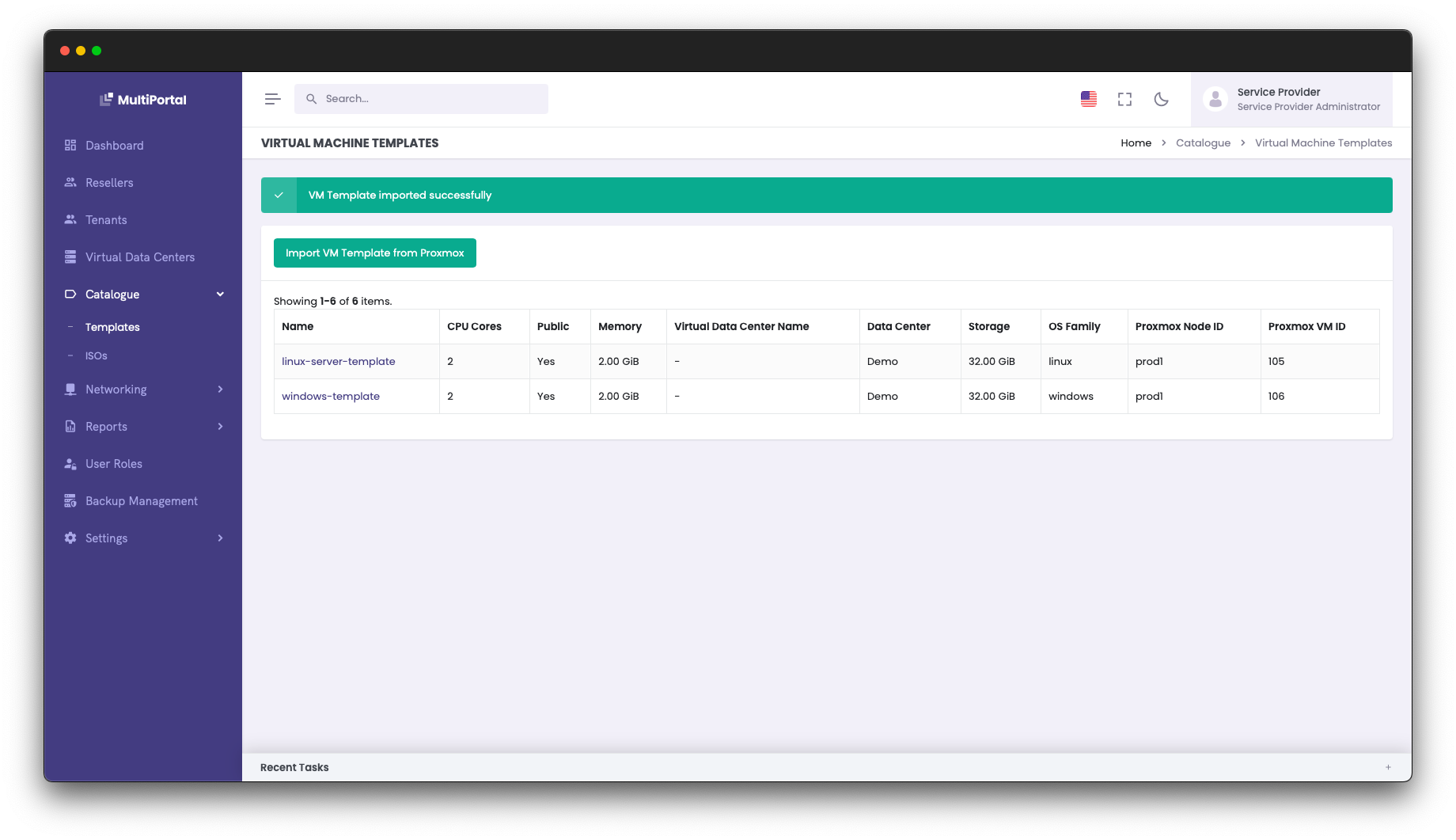
Your Tenants will now be able to deploy Virtual Machines from Templates within their Virtual Data Centers.
¶ Import Existing ISOs
You may have existing ISOs within Proxmox that you wish to make accessible to your Tenants. MultiPortal allows you to easily make these available so they can be attached to Virtual Machines.
Providing access to Windows VirtIO drivers is very important when allowing Windows VMs, as Windows often requires Storage and NIC drivers to function correctly. The latest version of the Windows VirtIO drivers can be downloaded here.
-
As a Service Provider Administrator, browser to Settings > Import > ISOs.
-
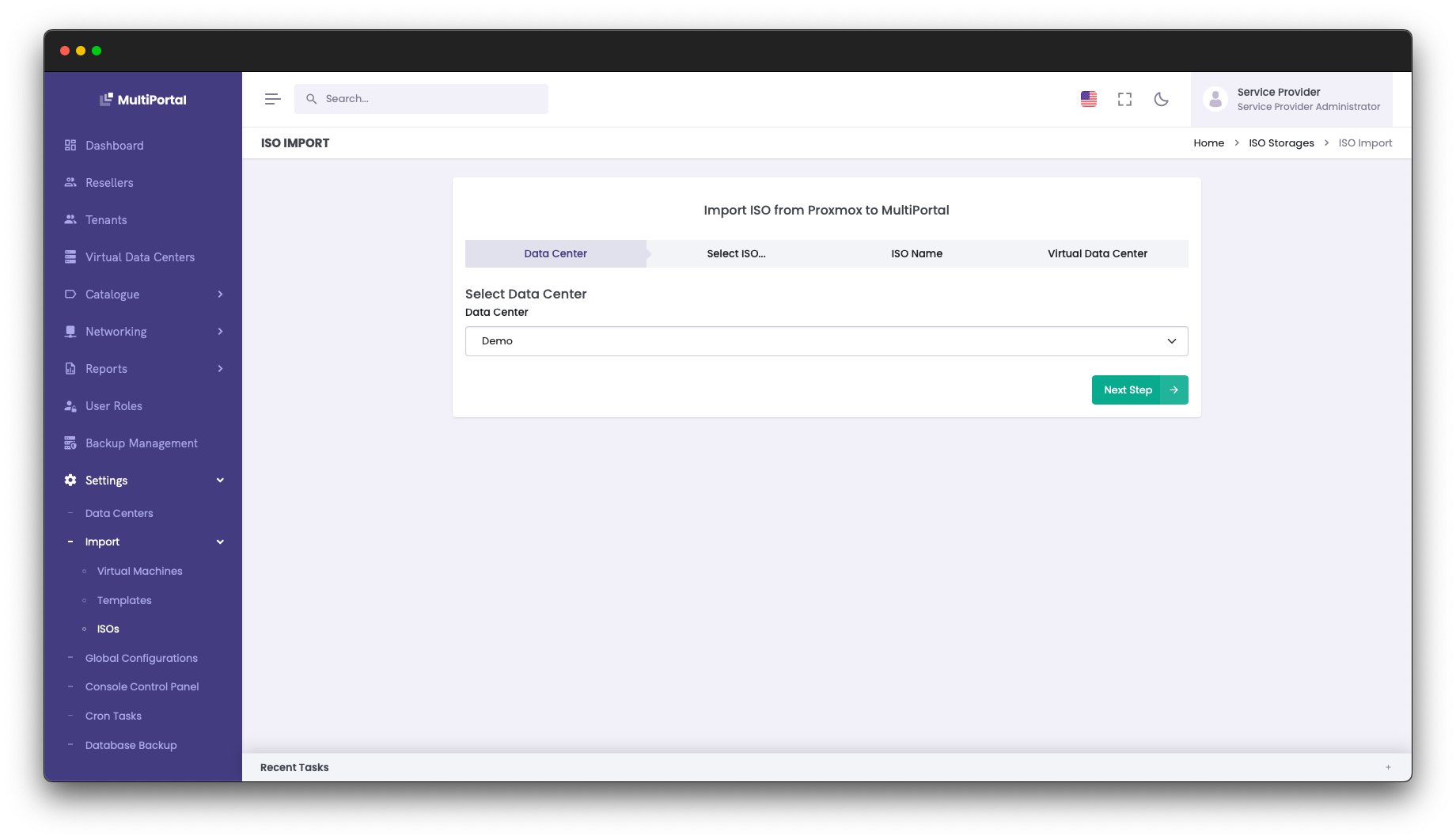
Select an existing Datacenter from the list and click "Next Step".
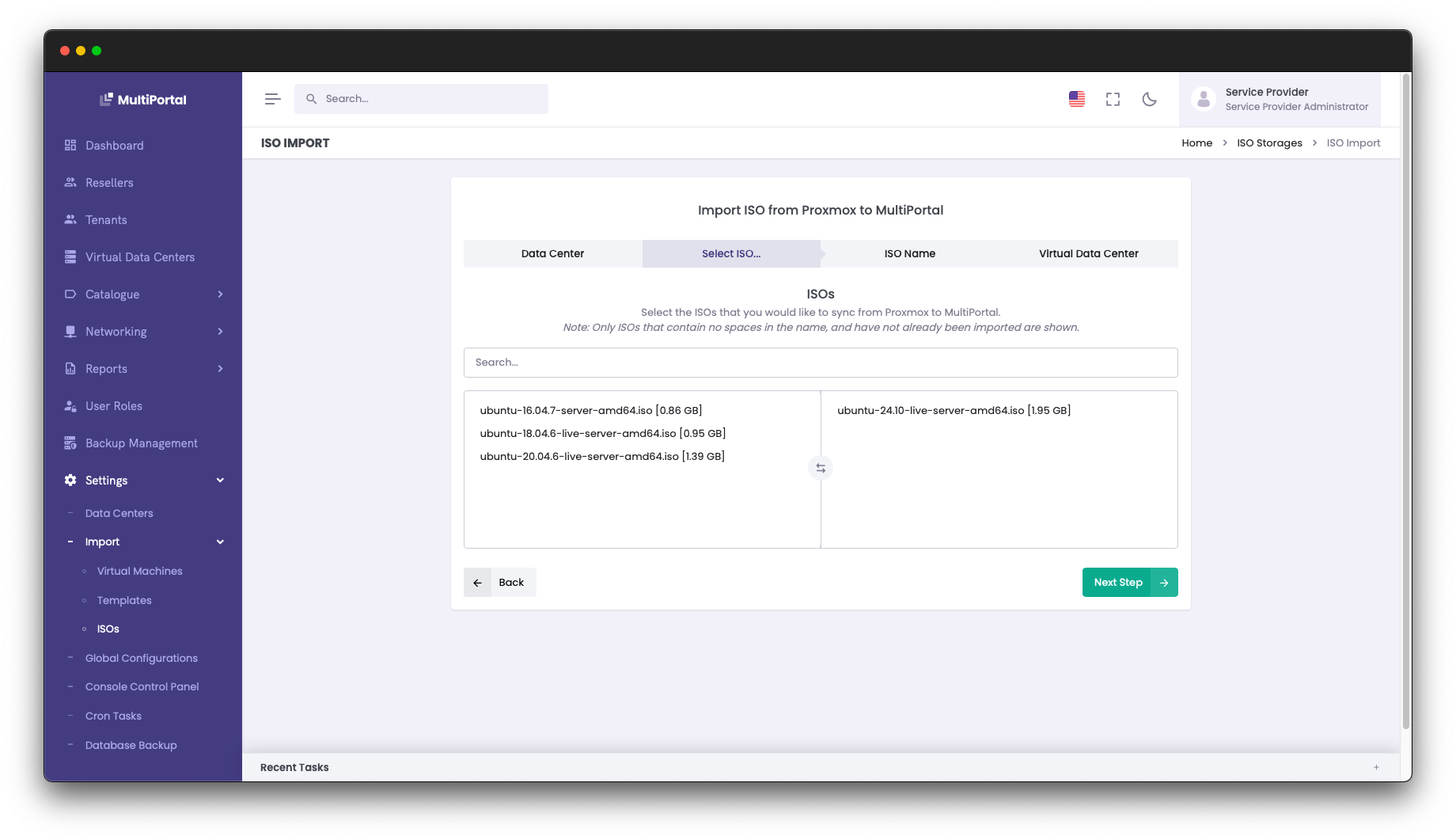
- MultiPortal will poll your existing Proxmox Datacenter and retrieve a list of all ISOs that do not already exist in MultiPortal. Simply click on any ISOs you wish to make accessible within MultiPortal and they will be moved to the right hand side of the input box. Click "Next Step".
- Set a friendly name for each ISO. This will be what your Tenants will see when selecting an ISO within MultiPortal.

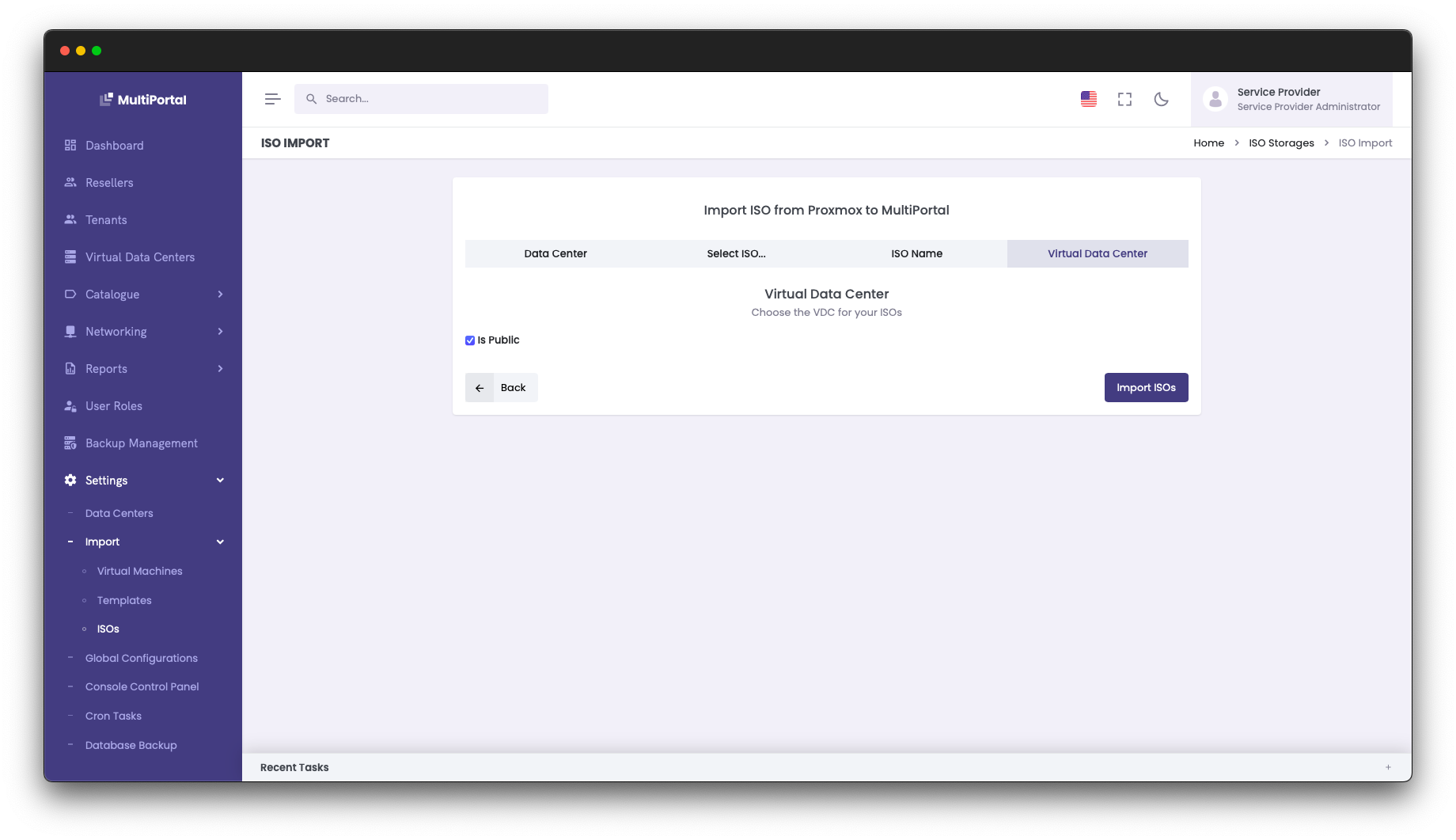
- You can now either set the selected ISOs as "Public", or assign them to a specific Tenant and Virtual Data Center. If you set the ISO(s) as Public, they will be accessible by all Tenants and Virtual Data Centers in your Proxmox Datacenter.
- After clicking "Import ISOs", you will be taken to the Catalogue page where you can see a full list of ISOs available in your MultiPortal instance.
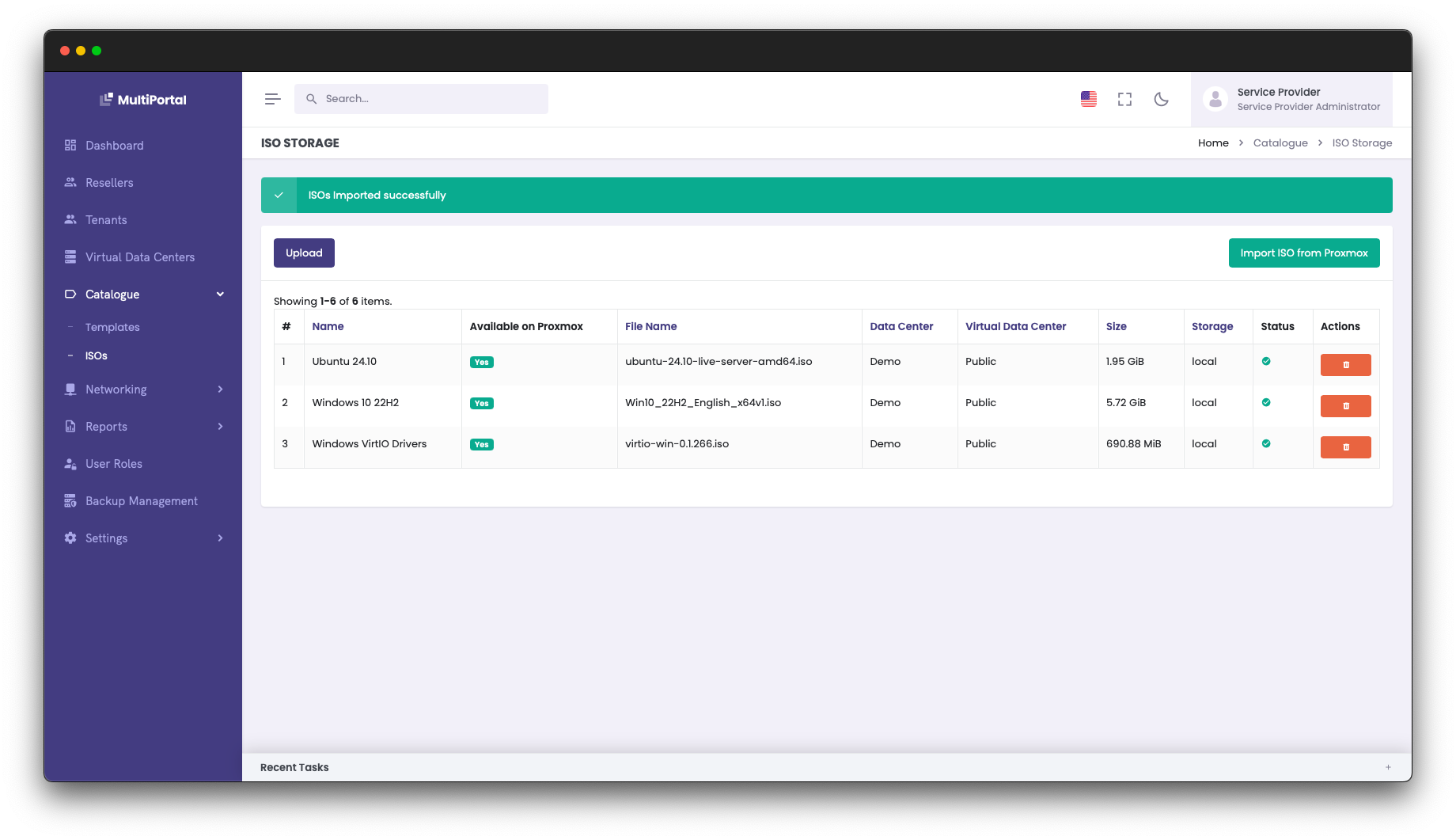
Your Tenants will now be able to build Virtual Machines and attach ISOs within their Virtual Data Centers.
¶ Need Help?
If you have completed the steps above and are still encountering issues, please reach out to MultiPortal Support for assistance.