This guide provides step-by-step instructions for setting up and managing Two-Factor Authentication (2FA) within MultiPortal.
2FA adds an extra layer of security to your account by requiring a unique code in addition to your password at login.
¶ Enabling Two-Factor Authentication
All users — including Service Providers, Resellers, and Tenants — can set up 2FA once logged in to MultiPortal.
Prerequisites:
You’ll need a compatible authentication app such as Authy, Google Authenticator, or a password manager that supports 2FA.
-
Log in to your MultiPortal account.
-
Click your username in the top-right corner of the page.
-
Select User Profile from the dropdown menu.
-
Click the Security tab.

-
Click Enable Two-Factor Authentication.
-
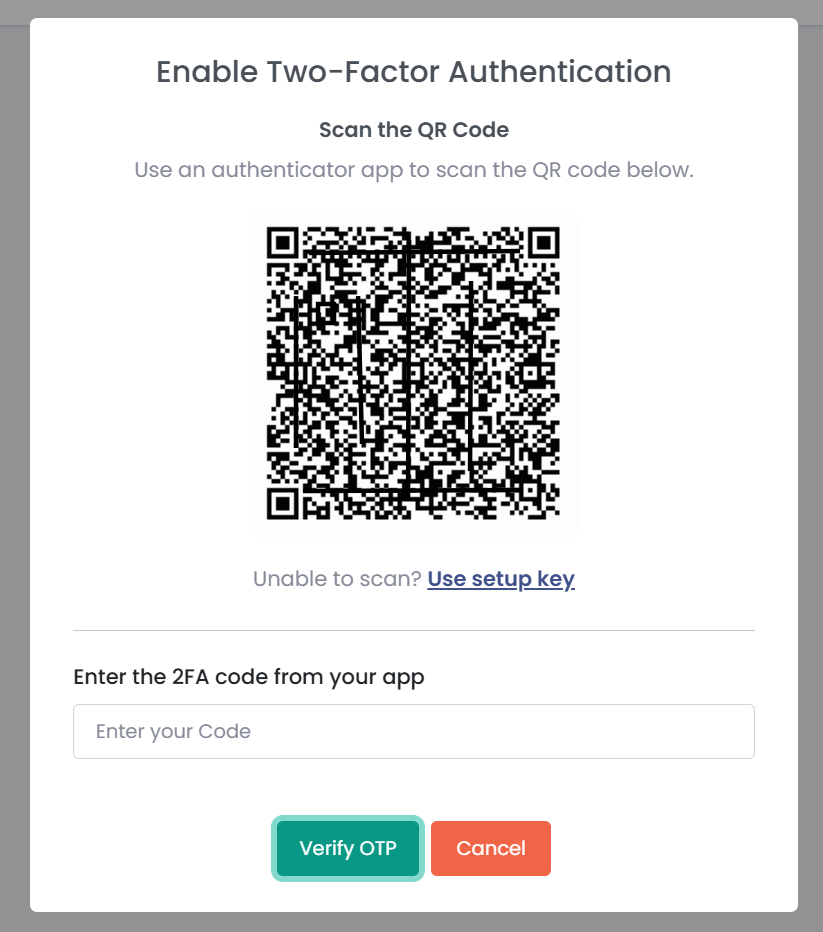
A modal will appear with a QR code and a field to enter a verification code.
-
Scan the QR code using your 2FA app (e.g., Authy).
-
The app will generate a 6-digit code — enter this into the field.
-
Click Verify OTP.
-
If successful, a Success message will appear.
- If it fails, verify your code and try again.
-
You’ll then be shown your backup codes — these are displayed only once.
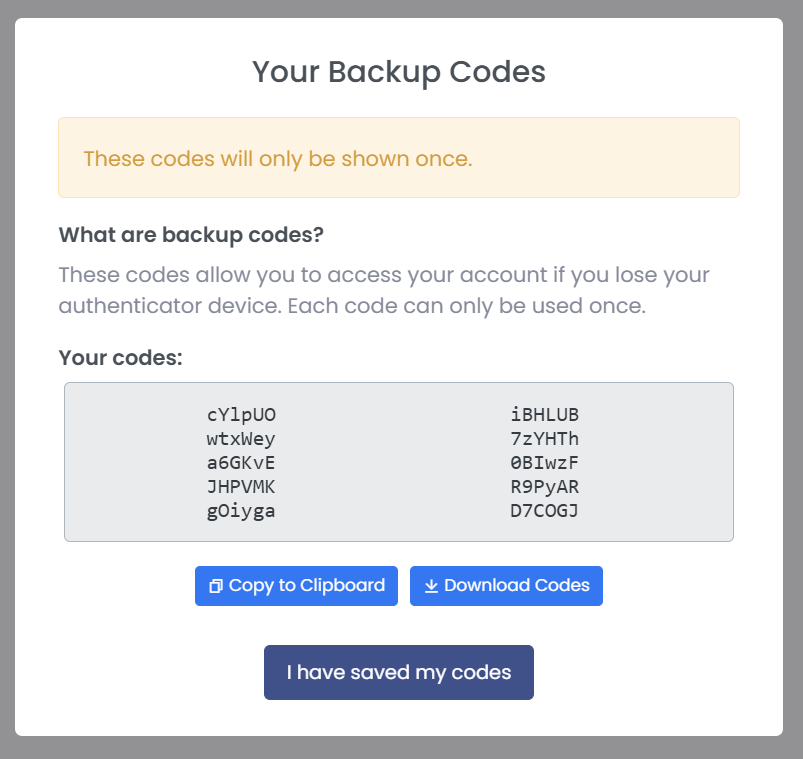
- You can copy them to your clipboard or download them as a text file.
-
Once saved, click I have saved my codes.
-
Confirm again by selecting I have saved them.
-
2FA is now successfully enabled on your account.
Backup codes are only shown once. Be sure to store them in a secure location.
¶ Logging In with 2FA
Once 2FA is enabled, you’ll be prompted for an OTP code every time you log in.
- Enter your username and password.
- Open your 2FA app and retrieve the one-time password (OTP).
- Enter the OTP when prompted to complete login.
¶ Regenerating Backup Codes
If you lose your backup codes or wish to refresh them:
- Log in to your account using your username and 2FA code.
- Go to Profile → Security.
- Select Regenerate Backup Codes.
- Confirm when prompted.
Note: Generating new backup codes will invalidate all previously saved or downloaded codes.
¶ Disabling Two-Factor Authentication
If needed, you can disable 2FA from your profile.
- Navigate to Profile → Security.
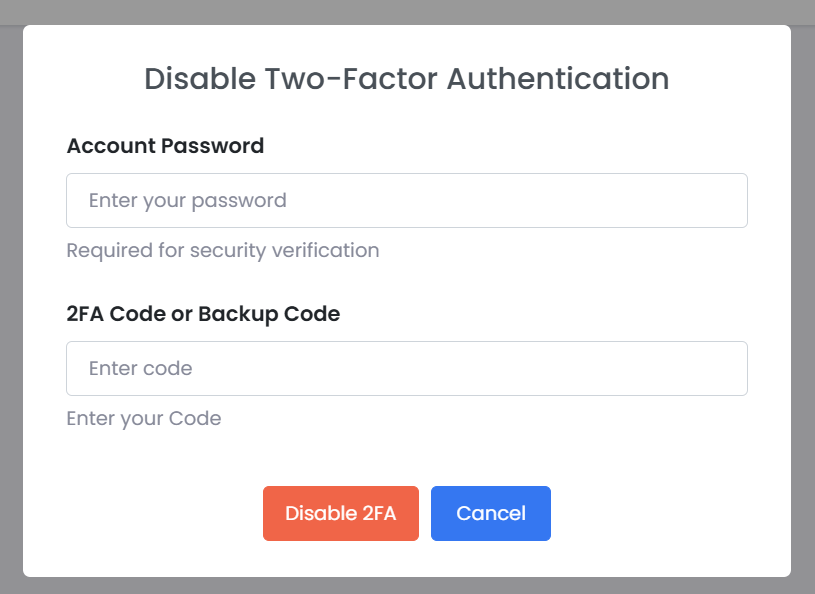
- Click Disable Two-Factor Authentication.
- Enter your account password and 2FA code (or a backup code).
- Confirm to disable 2FA.
¶ Conclusion
You have successfully configured Two-Factor Authentication (2FA) within MultiPortal.
This enhances account security by requiring both your password and a one-time authentication code during login.