¶ Resetting a User’s Password
Administrators can now securely reset a user’s password directly through MultiPortal. This is useful when a user has forgotten their credentials or needs their access restored quickly.
Note: Only users with administrative privileges (e.g., Service Provider Admins, Reseller Admins and Tenant Admins) can reset another user’s password. If they are owners of the user's accounts.
-
Log in to your MultiPortal account with administrative access.
-
Navigate to the Users section of your desired account type (e.g., Reseller or Tenant).
-
Select the specific account you want to manage — for example, a Reseller.
-
Within that account, locate the User List.
-
Find the user whose password you want to reset.
-
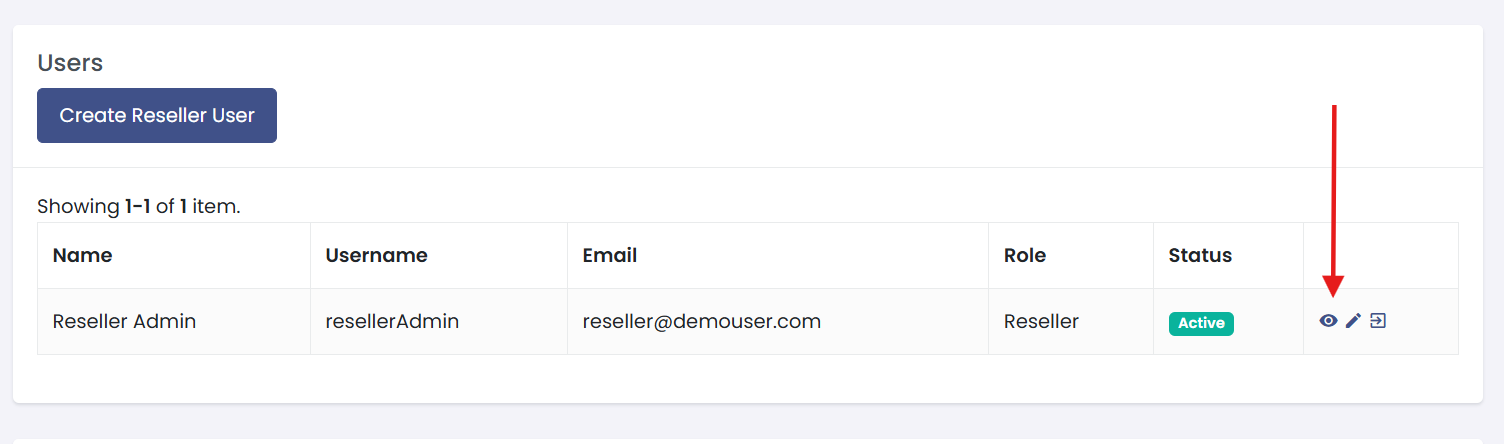
Click the “eye” (information) icon beside their name to open their profile details.
-
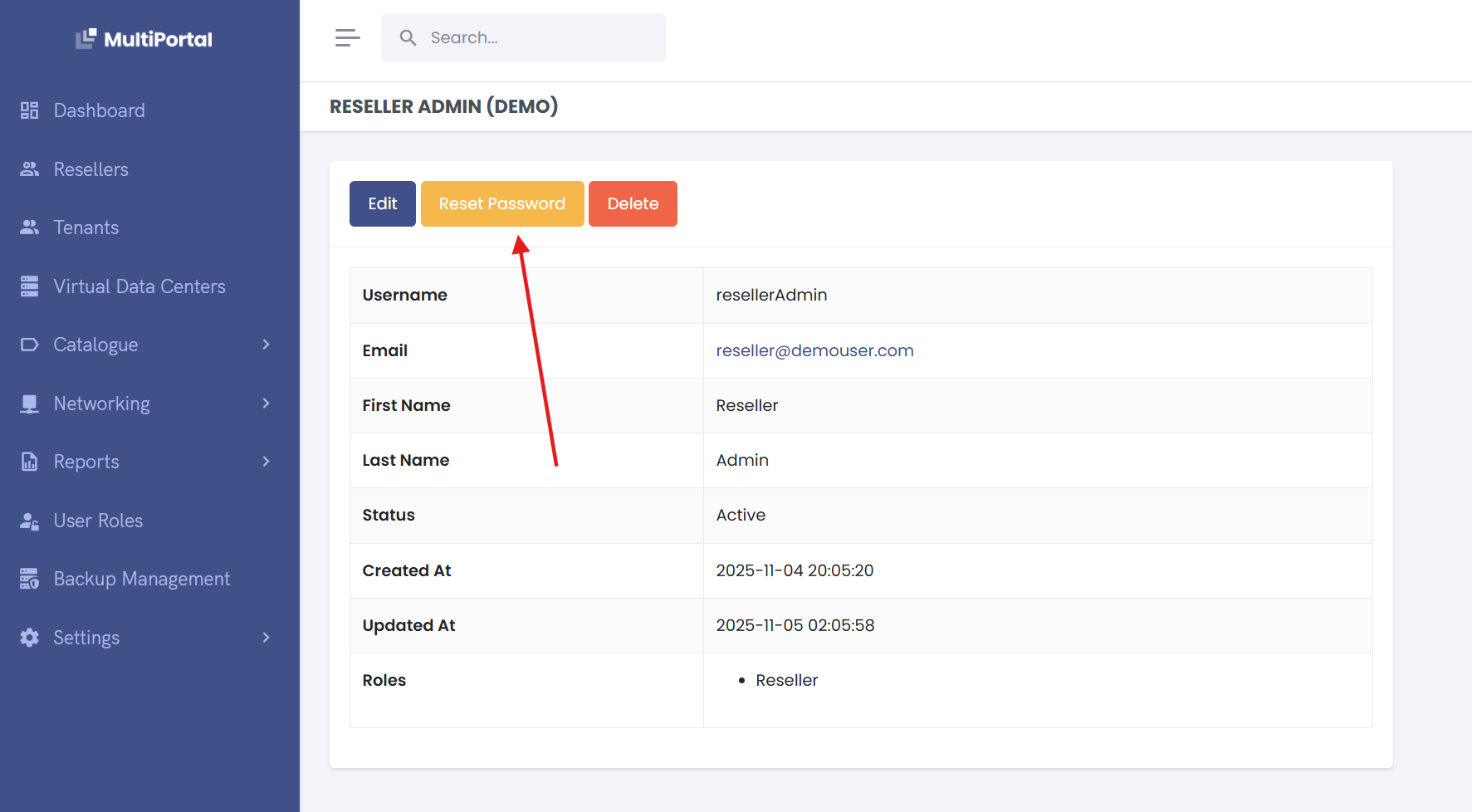
In the profile view, click the Reset Password option.
-
A modal will appear allowing you to generate a secure temporary password.
-
Once generated, you’ll be prompted to copy the new password.
- Copy the password to your clipboard.
- Send it securely to the user (e.g., via encrypted email or ticket message).
-
After sending the password, the user can proceed to log in with it.
¶ User Experience After Reset
Once the user receives the temporary password:
-
They should log in to MultiPortal using their username and the temporary password provided.
-
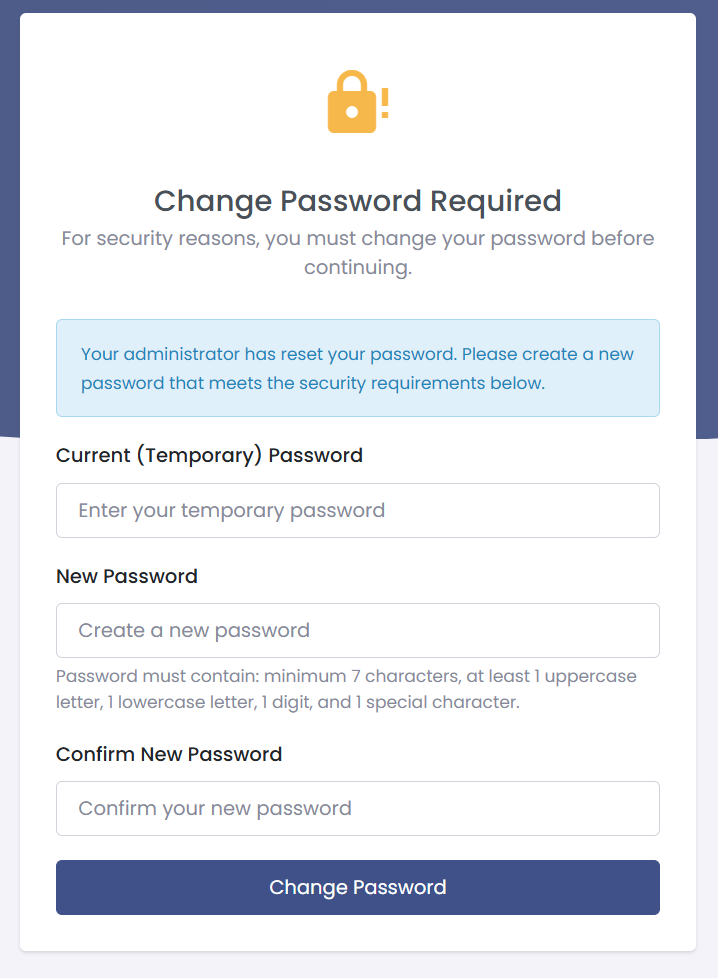
On first login, they will be prompted to create a new password.
-
The user must:
- Enter the temporary password once.
- Enter a new password twice (for confirmation).
-
Click Change Password to complete the process.
-
The password reset is now complete, and the user can log in normally with their new password.